AI setup in Alpha Anywhere
- Open The AI Menu
- IDE Settings
- Open IDE Settings
- Review Profiles
- Define Default Effort
- Pick Provider And Model
- Example: Local Llama-CPP
- Model Availability
- Project Providers (Deployment)
- Open AI Project Settings
- Start With Empty List
- Create A Provider Profile
- Select Local LLM And Model
- Commit Provider
Description
Configure IDE and Project providers so Alpha Anywhere can use AI locally or via hosted services. This walkthrough covers the AI menu, IDE efforts, provider selection, and project deployment providers.
Open The AI Menu
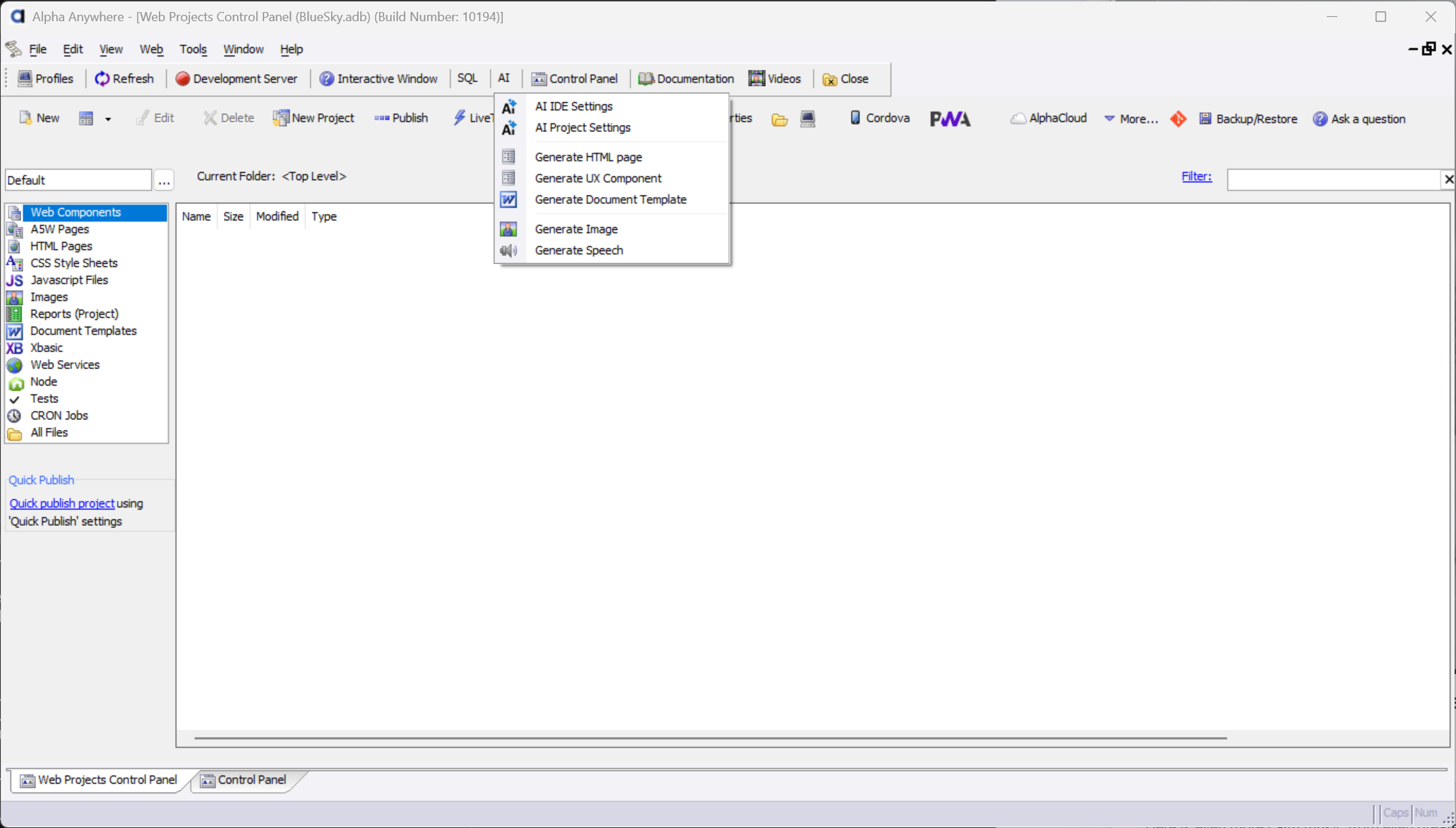
In the Web Project Control Panel toolbar, click the AI option to open the AI menu.
- AI IDE settings
Profiles the IDE uses to help with development tasks.
- AI Project Settings
Providers that ship with your application for deployment.
IDE Settings
Define IDE profiles and efforts for development-time AI assistance.
Open IDE Settings
Choose AI IDE settings from the AI menu.
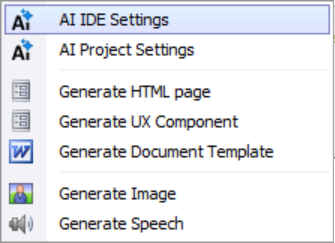 AI IDE Settings Menu Item
Review Profiles
The IDE settings shows a list of profiles so you can use different providers and models for different AI tasks.
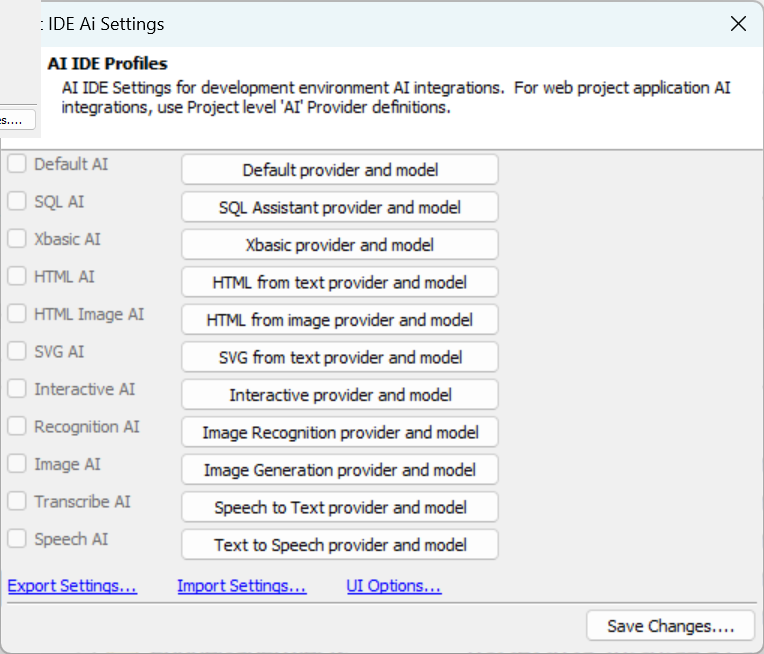 IDE Profiles
Define Default Effort
Set up the fallback profile. The first level for IDE is effort: define a basic effort; optionally add better and best efforts for higher-quality models that may be slower or cost more.
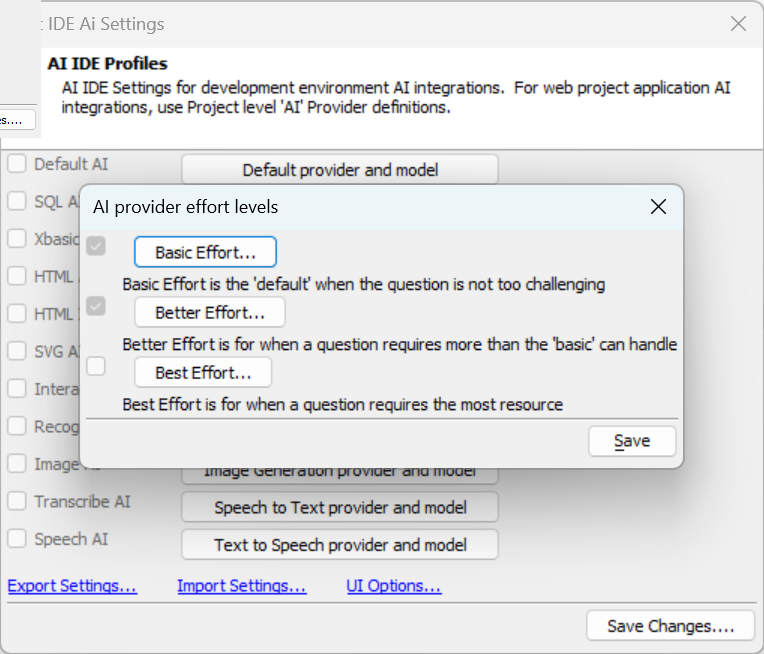 Effort Levels
Pick Provider And Model
For the basic effort, select a provider, choose a model, and save any required API keys and endpoints.
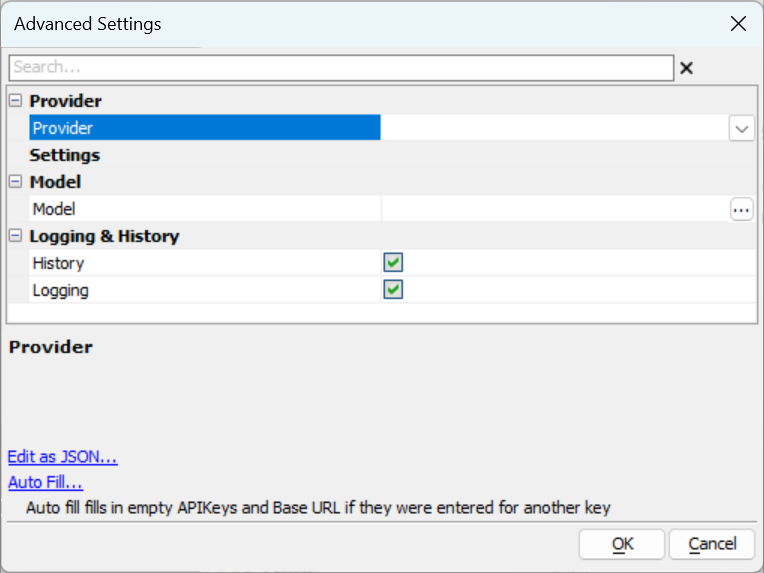 New Provider Setup
Example: Local Llama-CPP
This example uses a local model running on llama-cpp on the local network.
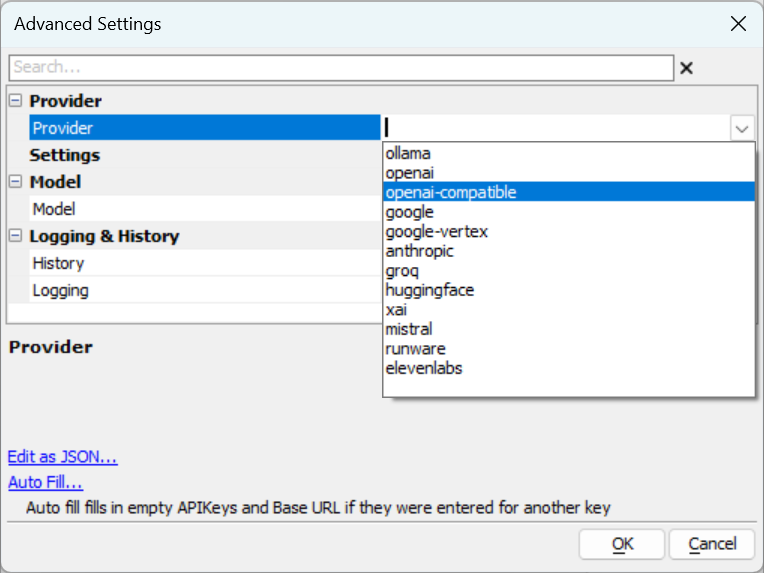 Select Llama-CPP Provider
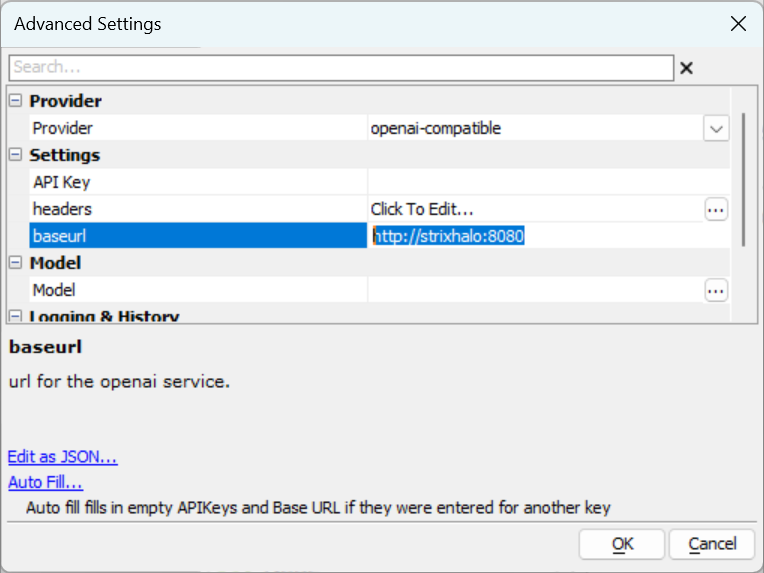 Specify Endpoint
Model Availability
Llama-cpp servers often expose a small set of models; providers like OpenAI typically list many more.
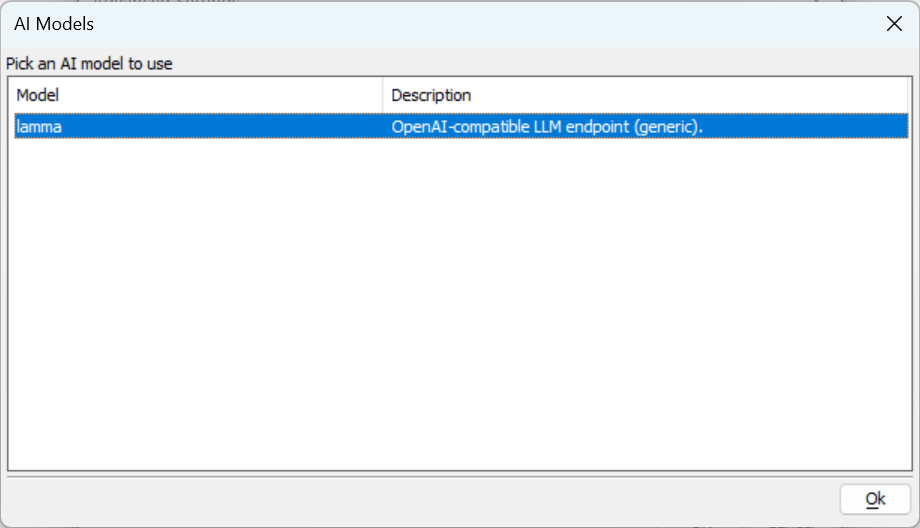 Available Models
Project Providers (Deployment)
Define providers your deployed application will use.
Open AI Project Settings
Pick AI Project Settings from the AI menu to configure deployment providers.
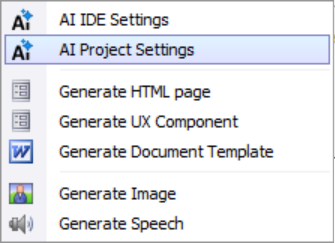 AI Project Settings Menu Item
Start With Empty List
Project providers are developer-named; the list is empty until you create one.
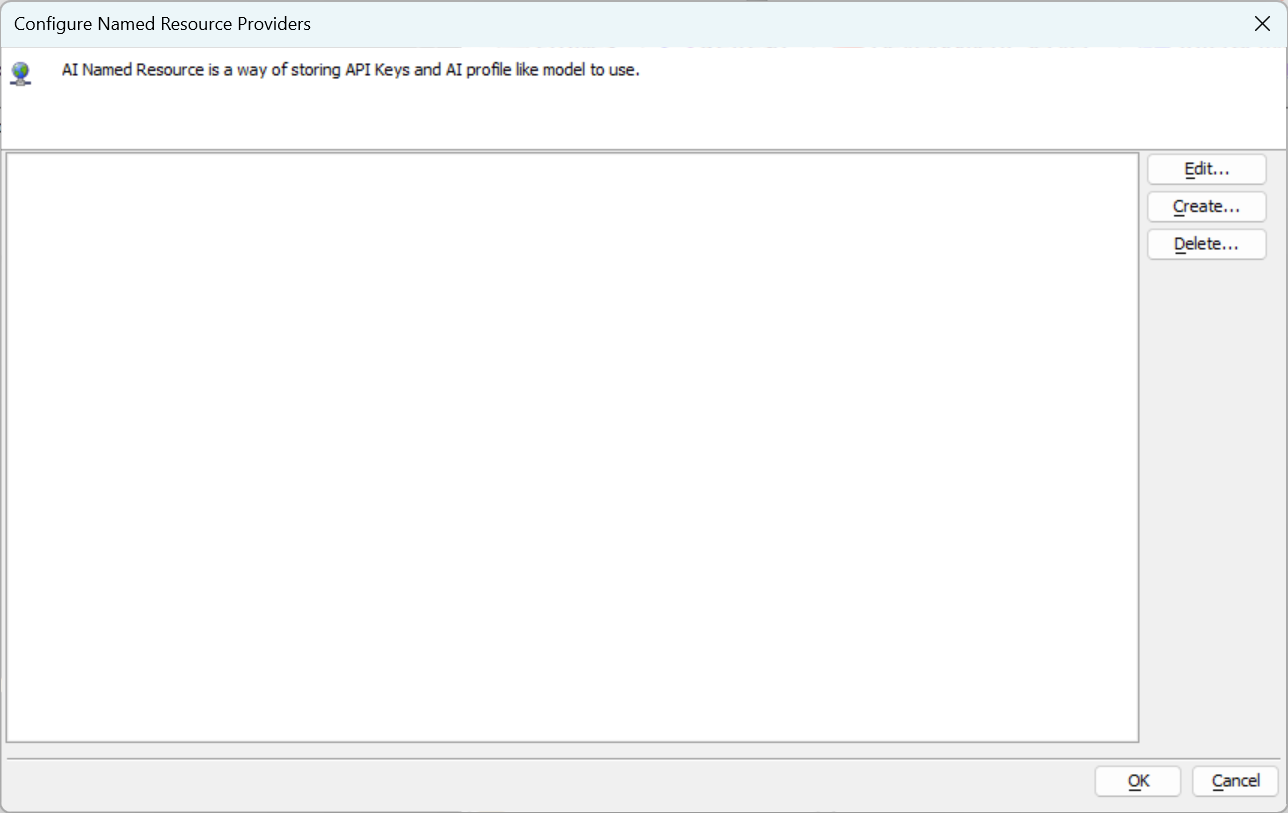 Empty Project Providers
Create A Provider Profile
Select Create and enter a name, for example LocalDeployment.
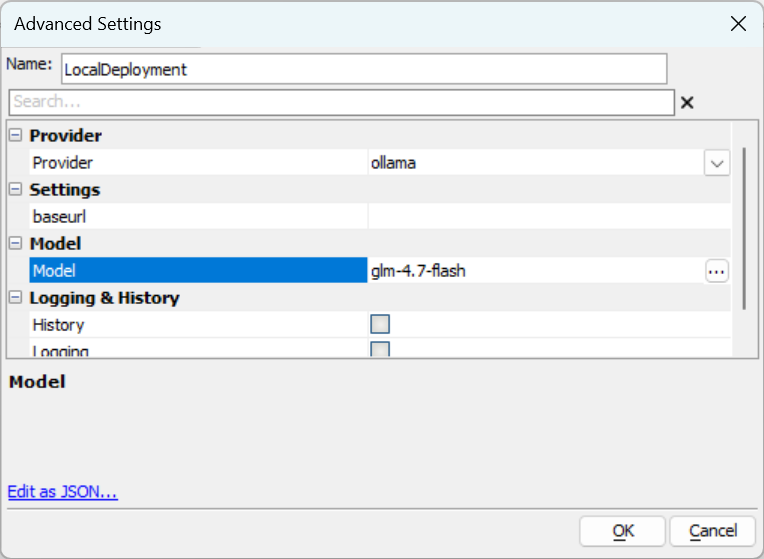 Name The Provider
Select Local LLM And Model
Define a local LLM running on your machine; choose from available models (e.g., glm-flash in this example).
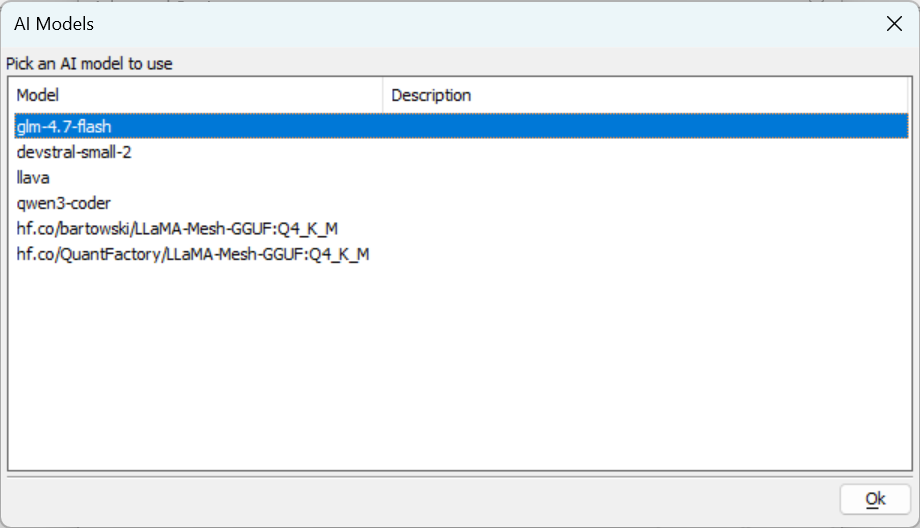 Choose Model (Ollama)
Commit Provider
After committing, the AI provider appears and can be published with your project. AI providers are a specialized case of NamedProviders and show in Web Project properties similar to storage providers.
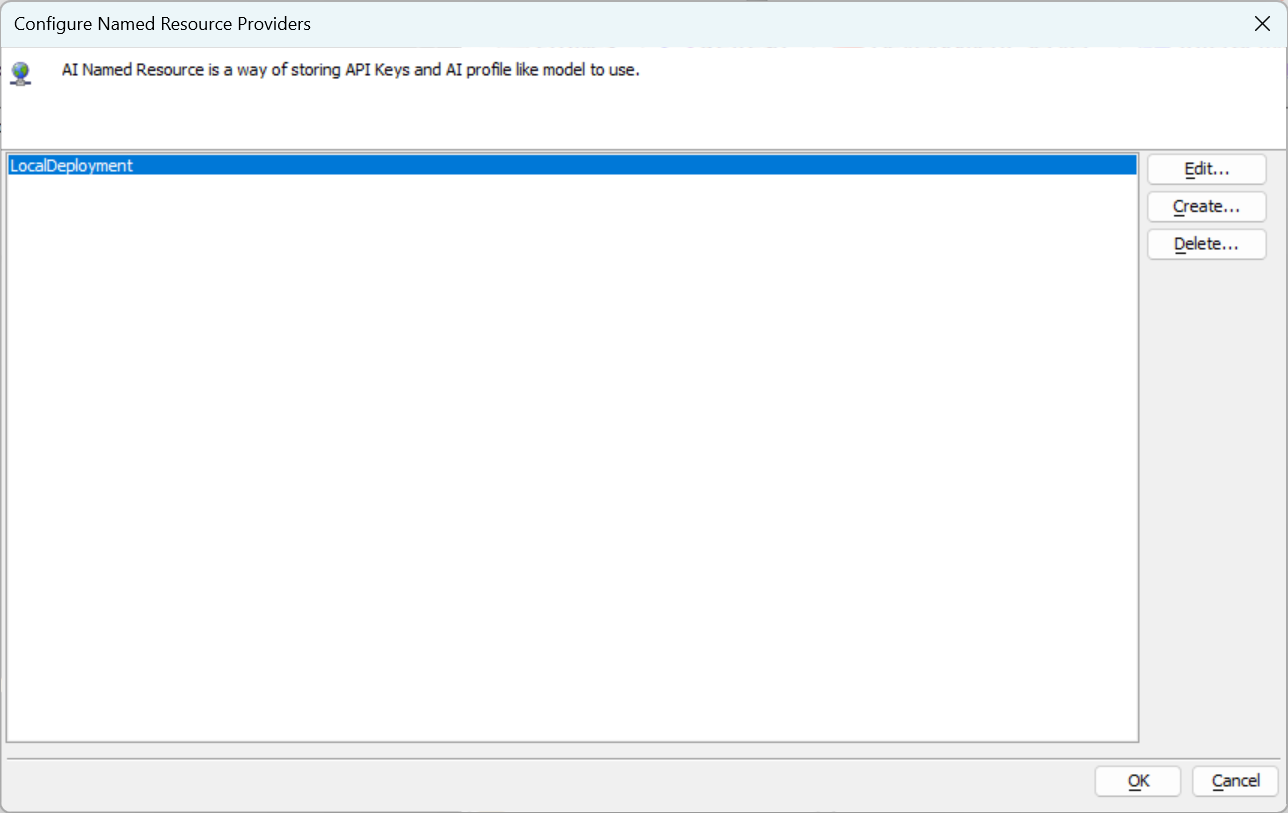 Project Provider Added